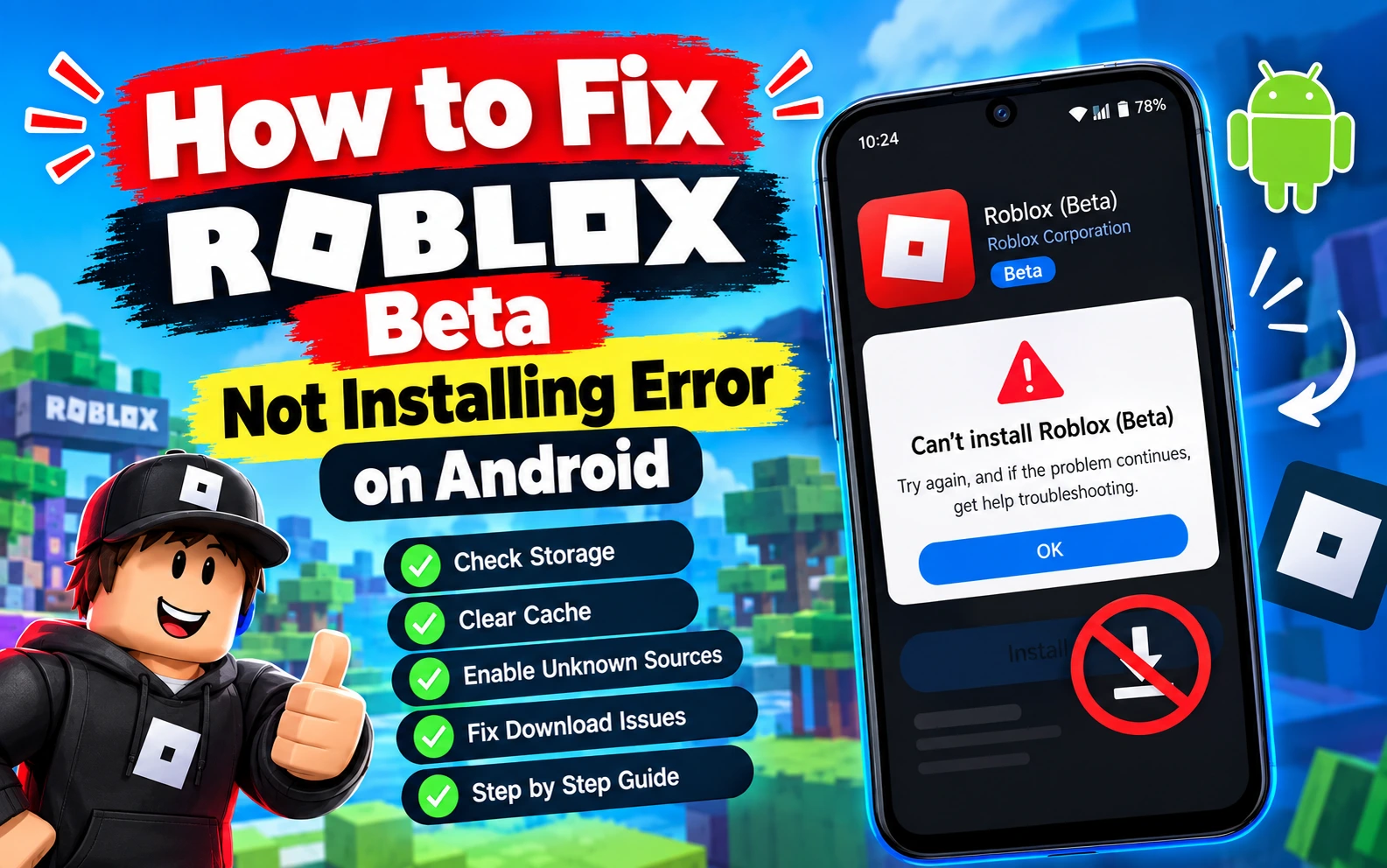
How to Fix Roblox Beta Not Installing Error on Android
You’ve finally decided to try Roblox Beta. You downloaded the APK, tapped install, and… nothing. Maybe you got a vague error message, or the installation just froze halfway through. It’s frustrating, especially when all you want is to try the new features everyone’s talking about.
The good news is that this is one of the most common issues Android users run into, and it almost always comes down to a handful of simple settings or steps. Let’s walk through exactly why this happens and how to fix it, one step at a time.
Why Roblox Beta Won’t Install on Android
Before jumping into fixes, it helps to understand what’s actually going wrong. Roblox Beta installs through an APK file rather than the Play Store, which means your phone treats it differently than a regular app download. Most installation failures come from one of these causes:
- Unknown sources or third-party app installs are blocked
- An older version of Roblox Beta or the regular Roblox app is conflicting with the new install
- The APK file itself is incomplete or corrupted
- Your device doesn’t meet the minimum storage or Android version requirements
- Google Play Protect is flagging the file before installation completes
Once you know which one applies to you, the fix usually takes less than five minutes.
Fix 1: Allow Installs From Unknown Sources
This is the single most common reason installation fails. Android blocks APK installs by default unless you specifically allow them.
Here’s how to enable it:
- Open your phone’s Settings
- Go to Apps (or Apps & Notifications, depending on your device)
- Tap Special App Access, then Install Unknown Apps
- Select the browser or file manager you used to download the APK
- Toggle on Allow from this source
Once that’s enabled, try installing the APK again. On many devices, this single step solves the problem completely.
Fix 2: Uninstall the Older Roblox Version First
If you already have the regular Roblox app or an older Roblox Beta build installed, Android may block the new install because the app signatures don’t match. This is a security feature, not a bug, but it still stops your installation cold.
What to do:
- Uninstall your current Roblox or Roblox Beta app completely
- Restart your phone (this clears any leftover cached data)
- Reinstall the fresh Roblox Beta APK
Your account and progress won’t be affected, since everything is saved to your Roblox account in the cloud rather than stored locally on your device.
Fix 3: Re-Download the APK File
Sometimes the installation fails simply because the file didn’t download properly. A partial or corrupted download can look complete in your downloads folder but still fail during installation.
Delete the existing APK file, clear your browser cache, and download the latest Roblox Beta APK again from a trusted source. It’s a small step, but it fixes more installation issues than people expect.
Fix 4: Check Your Storage Space
Roblox Beta needs enough free storage to install and run smoothly. If your phone is nearly full, the installation can fail without a clear error message explaining why.
Go to Settings > Storage and make sure you have at least 1-2 GB of free space available. Clearing out old photos, unused apps, or cached files usually does the trick.
Fix 5: Update Your Android Version
Roblox Beta is built to work with recent Android versions. If your device is running an outdated OS, certain features (or the installation itself) may not work correctly.
Check for pending updates under Settings > System > System Update. If an update is available, install it and then try the Roblox Beta installation again.
Fix 6: Temporarily Disable Play Protect
Google Play Protect sometimes flags APK installs from outside the Play Store, even when the file is completely safe. This can interrupt or silently block the installation process.
To adjust this:
- Open the Play Store app
- Tap your profile icon, then Play Protect
- Tap the settings gear icon
- Turn off Scan apps with Play Protect temporarily
Install Roblox Beta, then turn Play Protect back on afterward. This step isn’t always necessary, but it helps on devices where Play Protect is overly cautious.
Fix 7: Restart Your Device
It sounds too simple to matter, but a restart clears background processes that might be interfering with the installation. If you’ve tried everything above and it’s still not working, restart your phone and attempt the install one more time before troubleshooting further.
Still Not Installing? Try This Checklist
If none of the fixes above worked, run through this quick list:
- ✅ Confirm you downloaded the correct APK for your device’s architecture (most modern phones use ARM64)
- ✅ Make sure no other Roblox-related app is running in the background
- ✅ Try installing using a different file manager or browser
- ✅ Confirm your phone isn’t in a restricted mode set by parental controls or work profiles
One of these usually catches the issue if the standard fixes didn’t work. Note that this APK is built for Android only if you’re trying to play on a computer instead, check out how to get Roblox Beta running on PC for the correct installation method.
Final Thoughts
Installation errors are annoying, but they’re rarely permanent. In most cases, the fix comes down to enabling unknown sources, clearing out an older version, or simply re-downloading the file. Once Roblox Beta installs successfully, it runs just as smoothly as the regular Roblox app, with the added bonus of early access to new features.
Take it one step at a time, and don’t skip the uninstall-and-restart step. It solves more problems than people expect. For more tips, guides, and the latest Roblox Beta updates, check out the Roblox Beta blog.
FAQs