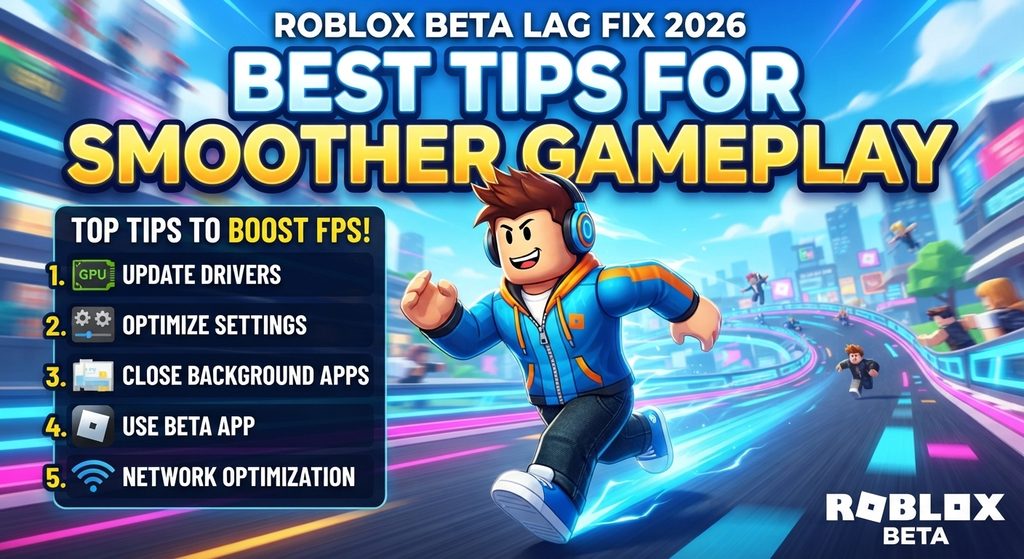
Roblox Beta Lag Fix 2026 – Best Tips for Smoother Gameplay
Experiencing slow performance, freezing, or sudden FPS drops can make playing Roblox frustrating. A reliable Roblox Beta Lag Fix 2026 can help you identify the reasons behind these problems and improve your overall gaming experience. Whether you play on an Android phone, tablet, or Windows PC, the right settings and troubleshooting methods can make a noticeable difference.
Roblox lag does not always have the same cause. Sometimes the problem comes from a slow internet connection, while other times your device may struggle to process graphics or run multiple applications. Understanding the difference between network lag and graphics lag is the first step toward finding an effective solution.
In this guide, you will discover practical ways to reduce Roblox lag, improve performance, adjust graphics settings, and enjoy smoother gameplay without downloading unsafe third-party applications.
What Causes Roblox Beta Lag in 2026?
Before applying any solution, you should understand why Roblox may become slow or unresponsive.
Some common causes include:
- Slow internet connection: Unstable internet can cause high ping and delayed actions.
- High graphics settings: Detailed visual effects may overload weaker devices.
- Limited RAM: Devices with insufficient available memory may struggle with demanding experiences.
- Background applications: Other apps can consume processing power and memory.
- Overheating: High device temperatures can reduce performance.
- Outdated software: Older operating systems, graphics drivers, or application versions may cause compatibility problems.
- Demanding Roblox experiences: Some games contain complex environments, effects, and scripts that require more resources.
Identifying the cause helps you avoid wasting time changing settings that are unrelated to the problem.
1. Lower Roblox Graphics Settings
One of the easiest ways to improve performance is to reduce graphics quality. Higher graphics settings can make an experience look better, but they may also increase the workload on your device.
Roblox provides automatic and manual graphics options that allow players to balance visual quality and performance.
How to change graphics settings:
- Open Roblox and join an experience.
- Open the Roblox menu.
- Select Settings.
- Find the Graphics Mode option.
- Change it from Automatic to Manual.
- Move the Graphics Quality slider toward the lower end.
- Return to the game and check performance.
Start with a low setting and increase it gradually if your device can handle higher quality.
Lower graphics settings may reduce visual detail, but they can help devices that struggle with demanding experiences.
Official guide: Roblox Graphics Quality
2. Close Background Applications
Running multiple applications while playing Roblox can reduce the resources available to the game.
For example, video streaming apps, browsers with many open tabs, screen recorders, and other demanding applications may consume RAM and processing power.
For Android users:
- Open the recent apps screen.
- Close applications you are not using.
- Stop unnecessary downloads.
- Avoid running several demanding apps together.
- Reopen Roblox and test the performance.
For Windows users:
- Press Ctrl + Shift + Esc.
- Open Task Manager.
- Review the applications using significant CPU or memory.
- Close unnecessary applications.
- Return to Roblox.
Do not end unfamiliar Windows system processes. Closing unnecessary user applications is generally safer.
3. Improve Your Internet Connection
If other players suddenly move from one location to another, or your actions take several seconds to register, you may be experiencing network lag.
Network lag is different from low FPS. Reducing graphics quality may not solve a problem caused by an unstable connection.
Try these methods:
- Use a stable Wi-Fi connection.
- Move closer to your router.
- Restart your router if the connection is unstable.
- Pause large downloads and streaming activities.
- Try another reliable internet connection.
- Avoid playing in areas with weak mobile network coverage.
Roblox’s support documentation recommends a minimum internet connection of approximately 4–8 Mbps for mobile play, although actual performance also depends on stability, latency, and the experience being played.
Official resource: Roblox Mobile System Requirements
4. Restart Your Phone or Computer
Sometimes a simple restart can resolve temporary performance problems.
Devices may accumulate background processes or experience temporary software issues after running for long periods.
Follow these steps:
- Save your work and exit Roblox.
- Close unnecessary applications.
- Restart your device.
- Wait for the operating system to load completely.
- Open Roblox again.
- Join an experience and check whether performance improves.
Restarting does not upgrade your hardware, but it can clear temporary issues and free resources that were being used by background processes.
5. Keep Roblox Updated
Using an outdated Roblox application can sometimes create compatibility or performance problems.
Updates may include bug fixes, security improvements, and changes that support newer operating systems and devices.
How to update Roblox on Android:
- Open Google Play Store.
- Search for Roblox.
- Open the official application listing.
- Check whether an Update option is available.
- Install the update.
- Restart the application.
How to update Roblox on Windows:
Use the official Roblox installation or Microsoft Store update process, depending on how you installed the application.
Avoid modified or unofficial APK files that promise better FPS or unlimited performance. These files may create security risks and are not a reliable way to fix lag.
You can also read more Roblox installation guides at RobloxBeta.pro.
6. Prevent Your Device From Overheating
Overheating can affect gaming performance, especially during long sessions.
When a phone or computer becomes too hot, its hardware may reduce performance to control temperature. This can lead to stuttering, slow gameplay, and unexpected interruptions.
To reduce overheating:
- Take short breaks during long gaming sessions.
- Avoid playing while your device is exposed to direct sunlight.
- Close unnecessary background applications.
- Avoid covering ventilation openings on laptops.
- Use your device on a hard, ventilated surface.
- Remove a thick phone case temporarily if it is trapping heat.
If your device becomes unusually hot, stop playing and allow it to cool down.
7. Free Up Storage Space
Low available storage can sometimes contribute to general device problems, particularly when the operating system and other applications need temporary space.
Although storage space is different from RAM, maintaining sufficient free space can help your device operate more reliably.
Android storage tips:
- Remove applications you no longer use.
- Delete unnecessary downloaded files.
- Move personal photos and videos to a secure backup location.
- Clear temporary files where appropriate.
- Keep some free storage available for system operations and updates.
Windows storage tips:
- Remove unnecessary downloads.
- Uninstall unused applications.
- Use Windows Storage settings to review temporary files.
- Keep enough free space for updates and normal system activity.
Do not delete unfamiliar system files in an attempt to improve Roblox performance.
8. Update Your Graphics Drivers on PC
Windows players may experience graphics-related problems if their graphics drivers are outdated or incompatible.
Graphics drivers help the operating system communicate with the graphics hardware. Keeping them updated can resolve certain rendering and compatibility issues.
How to update graphics drivers:
- Identify your graphics hardware through Device Manager.
- Visit the official NVIDIA, AMD, or Intel support website, depending on your hardware.
- Find the driver intended for your specific graphics model and Windows version.
- Follow the manufacturer’s installation instructions.
- Restart your computer.
- Open Roblox and test the performance.
Download drivers only from trusted manufacturer websites.
Official Roblox guidance: Graphics Problems on Computers
9. Choose Less Demanding Roblox Experiences
Not every Roblox experience requires the same amount of processing power.
Some games contain detailed environments, numerous moving objects, complex animations, and visual effects. These features can make them more demanding than simpler experiences.
If your device struggles with a particular game:
- Try a less demanding experience.
- Reduce graphics quality.
- Avoid running screen recording applications.
- Close unnecessary background apps.
- Test another game to compare performance.
If simpler games run smoothly but one particular experience continues to lag, the issue may be related to that experience’s design or server performance rather than your device.
10. Adjust Windows Power Settings
Laptop users may experience reduced performance when their device is operating in a power-saving mode.
Windows power settings can affect how much power is available to the processor and other hardware.
To check your settings:
- Open Windows Settings.
- Select System.
- Open Power & battery.
- Find the Power mode option.
- Select an appropriate performance setting when plugged in, if available.
- Test Roblox again.
Higher performance settings may use more battery power and produce additional heat. Choose a setting that suits your device and usage.
11. Check Whether the Problem Is High Ping or Low FPS
Many players describe every performance problem as lag, but high ping and low FPS are different issues.
Understanding the difference can help you choose the correct solution.
| Problem | Common symptoms | Recommended solution |
|---|---|---|
| High ping | Delayed actions and players teleporting | Improve internet stability |
| Low FPS | Choppy movement and slow animations | Lower graphics settings |
| Device overheating | Performance drops after extended play | Cool down the device |
| Memory shortage | Freezing or unexpected crashes | Close background applications |
| Game-specific lag | Only one experience performs poorly | Try another experience |
If the game looks smooth but your actions are delayed, investigate your connection first. If movement looks choppy even when your internet is stable, focus on device performance and graphics settings.
Best Roblox Settings for Low-End Devices
Players using older phones or entry-level computers may benefit from reducing visual settings.
The following are general starting recommendations rather than guaranteed settings for every device.
| Setting or action | Suggested approach |
|---|---|
| Graphics Mode | Manual |
| Graphics Quality | Start low |
| Background apps | Close unnecessary apps |
| Internet | Use a stable connection |
| Screen recording | Disable if not needed |
| Device temperature | Avoid overheating |
| Application version | Keep updated |
You can gradually increase graphics quality if gameplay remains smooth.
Common Mistakes to Avoid When Fixing Roblox Lag
Some online performance tips can make problems worse or expose your device to security risks.
Avoid these mistakes:
1. Downloading modified Roblox APKs: Unofficial versions may contain harmful software or compromise your account.
2. Using fake FPS boosters: Applications promising guaranteed performance improvements may not deliver useful results.
3. Disabling important system services: Removing essential services can cause additional device problems.
4. Setting graphics too high: Higher quality can increase hardware workload.
5. Ignoring overheating: Continuing to play on an unusually hot device may cause performance and safety concerns.
6. Confusing ping with FPS: Network problems and graphics performance require different troubleshooting methods.
Use official Roblox settings and trusted device-management tools instead.
Frequently Asked Questions
How Can I Fix Roblox Beta Lag in 2026?
Start by lowering graphics quality, closing background applications, checking your internet connection, restarting your device, and updating Roblox. These steps address many common causes of lag.
Why Does Roblox Lag on Android?
Android lag can result from limited RAM, demanding experiences, overheating, weak internet, or high graphics settings. Close unused applications and lower graphics quality to test whether performance improves.
How Can I Reduce Roblox FPS Drops?
Lower the graphics setting, close unnecessary applications, keep your device cool, and make sure your operating system and graphics drivers are updated.
Does Lowering Graphics Improve Roblox Performance?
It can. Lower graphics quality reduces some visual workload and may help devices that struggle to render demanding experiences.
Does Internet Speed Affect Roblox Gameplay?
Yes. An unstable or slow connection can cause network lag, delayed actions, and connection interruptions. Connection stability and latency are also important.
Is Roblox Beta Better Than the Regular Version for Performance?
Not necessarily. A beta version or experimental feature does not automatically provide higher FPS or smoother gameplay. Performance depends on the application version, device, connection, and individual experience.
Can I Fix Roblox Lag Without Downloading Another App?
Yes. You can try built-in Roblox graphics settings, close background apps, restart your device, improve your connection, and update your software without installing third-party boosters.
Conclusion
A good Roblox Beta Lag Fix 2026 starts with identifying whether the problem comes from your internet connection, device hardware, graphics settings, or a particular Roblox experience.
Lowering graphics quality, closing background applications, updating software, improving network stability, and preventing overheating are practical ways to improve gameplay.
You do not need suspicious APK files or unofficial FPS boosters to troubleshoot common problems. Use Roblox’s built-in settings, follow trusted support guidance, and choose performance settings that match your device.
With the right adjustments, you can enjoy a more stable and smoother Roblox gaming experience.