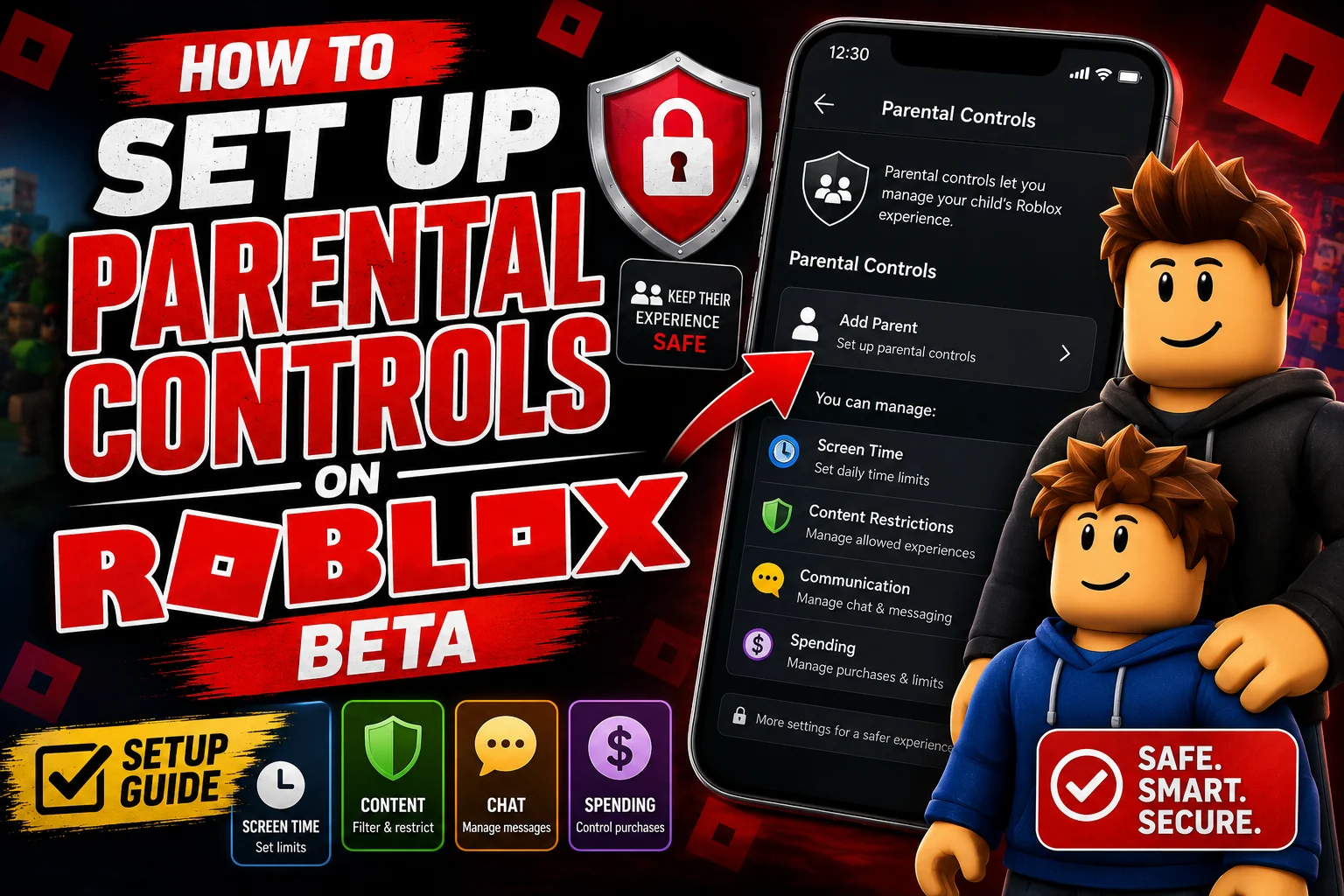
How to Set Up Parental Controls on Roblox Beta (2026) Guide
Your kid just asked to download Roblox Beta, and now you’re wondering what exactly that means for their safety. Is it the same as the regular Roblox app? Can you still control who they talk to, what they buy, and how long they play?
The good news is that parental controls work the same way on Roblox Beta as they do on the official app, since they’re tied to your child’s Roblox account rather than the specific version of the app. This guide walks you through exactly how to set everything up, step by step.
Do Parental Controls Work the Same on Roblox Beta?
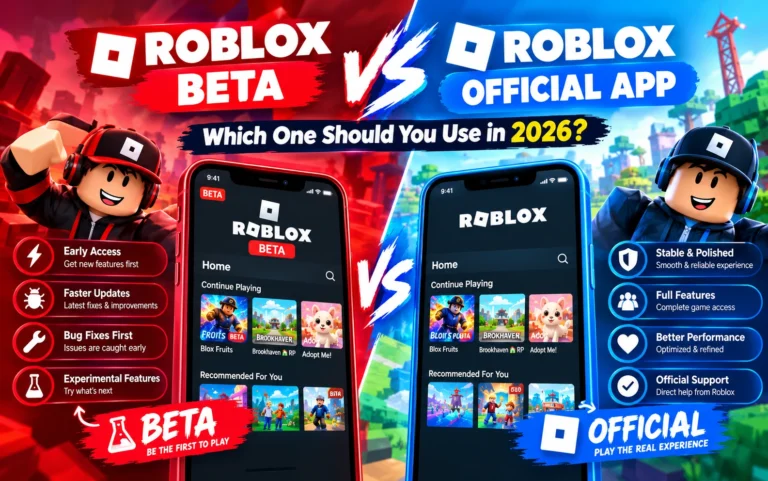
Yes. Roblox Beta uses the same account system, privacy settings, and safety features as the official Roblox app. Whether your child logs in through Roblox Beta or the regular app, the parental controls you set apply everywhere their account is used, and they stay in place even after a Roblox Beta update.
This means you don’t need separate settings for each version. Set it up once, and it protects your child no matter which app they open.
Step 1: Create a Parent Account and Link It
Roblox offers a Parent Account feature that connects directly to your child’s account, letting you manage settings remotely from your own phone or computer.
- Go to the Roblox website or app on your own device
- Create your own Roblox account if you don’t already have one
- During your child’s account setup (or from their existing account settings), select Add a Parent
- Enter your email and follow the verification steps
- Once linked, you’ll have access to a Parent Dashboard where you can adjust settings for your child’s account
Step 2: Set Up Account Restrictions
Roblox has a built-in setting called Account Restrictions, designed specifically for younger players. It limits chat, content, and game access automatically.
To enable it:
- Log in to your child’s account (or use the Parent Dashboard)
- Go to Settings > Privacy
- Toggle on Account Restrictions
- Confirm the change
Once enabled, your child will only see age-appropriate content and won’t be able to chat freely with strangers.
Step 3: Adjust Privacy Settings for Chat and Messaging
Even without full Account Restrictions, you can fine-tune who your child can communicate with.
Under Settings > Privacy, you can control:
- Who can message you — set to “No One” or “Friends” only
- Who can join your experiences — restrict to friends only
- Who can see your inventory — limit visibility to reduce scam attempts
- Contact list visibility — keep it private if you don’t want others requesting to add your child
These settings apply the moment they’re changed and work identically across Roblox Beta and the official app.
Step 4: Manage Spending With a PIN
One of the biggest concerns parents have is unexpected Robux purchases. Roblox lets you lock down spending behind a PIN code.
- Go to Settings > Account Info
- Find the Parental Controls or Account PIN section
- Set a 4-digit PIN
- Enable the PIN requirement for purchases
Once set, your child (or anyone using the device) will need that PIN before making any purchase, whether it’s Robux, a game pass, or an in-experience item.
Step 5: Set Screen Time Limits
Roblox includes a built-in feature to manage how long your child can play each day.
- Open the Parent Dashboard (if linked) or your child’s Settings
- Go to Screen Time
- Set a daily time limit
- Choose specific days or hours if you want more granular control
This works across devices as long as your child is logged into the same account, so switching between the official app and Roblox Beta won’t bypass the limit.
Step 6: Review Age-Based Content Filters
Roblox automatically applies content filters based on the birthdate entered during account creation. Double-check that this information is accurate, since an incorrect age can unlock content that isn’t appropriate.
You can review and adjust content maturity settings under Settings > Content Maturity, where Roblox shows which experience types are currently accessible.
Roblox Parental Controls Login: Accessing Your Parent Dashboard
Once your parent account is linked, you don’t need to log in through your child’s account every time you want to check or adjust settings. Roblox lets you access the Parent Dashboard directly using your own login credentials.
To log in and manage parental controls:
- Go to the Roblox website or open the app on your own device
- Sign in using your parent account email and password
- Navigate to the Parent Dashboard from your account menu
- Select your child’s linked account to view or edit their settings
From here, you can adjust Account Restrictions, screen time limits, spending controls, and privacy settings without needing your child’s password at all. If you ever forget your parent account login, use the standard Forgot Password option on the Roblox login page to reset it through your registered email.
Extra Tips for Keeping Kids Safe on Roblox Beta
Does Installing Roblox Beta Require Anything Extra for Safety?
Not really. Since Roblox Beta installs through an APK on Android rather than the Play Store, it’s worth downloading it from a reliable source, like our Roblox Beta download page, rather than random third-party links. Beyond that, the same account-level protections apply once your child logs in.
If your child plays primarily on a computer instead, the setup process is nearly identical, though you’ll want to check our guide on Roblox Beta for PC for platform-specific details.
What If My Child Already Has an Unrestricted Account?
If your child has been using Roblox for a while without parental controls, you can still apply all of the settings above at any time. Nothing needs to be reset or reinstalled, since these are account-level changes rather than app-level ones.
Once applied, the restrictions take effect immediately across every device where your child is logged in, including Roblox Beta.
Final Thoughts
Setting up parental controls on Roblox Beta takes about ten minutes, and once it’s done, it protects your child consistently whether they’re using Roblox Beta or the official app, even after the next Roblox Beta update. The key steps are linking a parent account, enabling Account Restrictions, locking down purchases with a PIN, and setting reasonable screen time limits.
Roblox puts a lot of these tools directly in your hands. Taking a few minutes to set them up gives you real peace of mind without limiting your child’s ability to enjoy the platform.