Roblox Beta Crashing 2026 – Powerful Troubleshooting Solutions
Are you opening Roblox Beta only to see it crash, freeze, or close unexpectedly? This problem can interrupt gameplay, prevent you from joining experiences, and make the app frustrating to use. Fortunately, many Roblox crashing issues can be resolved by checking your device, updating the app, and adjusting a few settings.
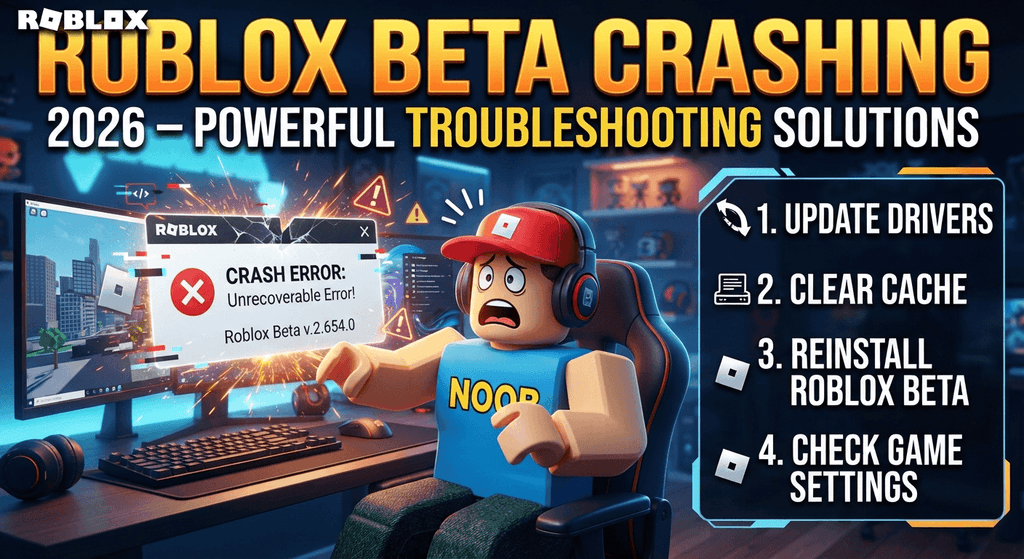
In this guide, we’ll explain how to fix Roblox Beta Crashing 2026 on Android and other supported devices. You’ll learn the common causes, practical troubleshooting steps, and ways to reduce crashes during gameplay.
Important: Roblox Beta may contain experimental features, so some crashes can be related to the test version itself. Menu names and available settings may differ depending on your device and app version.
1. Why Is Roblox Beta Crashing?
Before trying different solutions, it helps to understand what may be causing the problem.
Common reasons include:
- Outdated app version: An older build may have compatibility or performance issues.
- Low RAM: Too many background applications can leave insufficient memory for Roblox.
- Insufficient storage: Limited free space can interfere with updates and app operation.
- Corrupted cache: Temporary files may sometimes cause unexpected behaviour.
- Device compatibility: Older Android versions or unsupported hardware may struggle to run the app.
- Unstable internet: Connection problems can interrupt gameplay or joining an experience.
- Beta bugs: Experimental builds may contain issues that are not present in stable releases.
Roblox lists Android 8.0 or higher and OpenGL ES 3.0 support as mobile requirements. Meeting these requirements does not guarantee that every experience will run smoothly on every device. Roblox Support+1
2. Restart Your Device
Restarting your phone is one of the easiest troubleshooting steps. It closes active processes and gives your device a fresh start.
How to restart Android:
- Press and hold your phone’s power button.
- Select Restart or Reboot.
- Wait for the phone to turn back on.
- Open Roblox Beta again.
- Join an experience and check whether the crashing continues.
If you are using an iPhone or iPad, restart it using the appropriate device controls.
3. Force Stop Roblox Beta
Sometimes the app continues running in the background even after you leave it. Force stopping can help resolve temporary app problems.
Follow these steps:
- Open your phone’s Settings.
- Select Apps or App Management.
- Find Roblox in the application list.
- Open its App Info page.
- Tap Force Stop.
- Confirm the action if requested.
- Launch Roblox again.
This does not normally delete your account or saved online progress. Roblox also recommends closing and reopening the app as an initial troubleshooting step. Roblox Support
4. Clear Roblox Beta Cache
Cached files help applications load content more quickly, but damaged or outdated temporary files can sometimes create problems.
To clear the cache:
- Open Android Settings.
- Go to Apps or App Management.
- Select Roblox.
- Open Storage or Storage Usage.
- Tap Clear Cache.
- Restart Roblox and test it again.
Important: Choose Clear Cache rather than Clear Data if you only want to remove temporary files. Clearing app data may remove locally stored settings and require you to sign in again.
5. Update Roblox Beta to the Latest Version
Using an outdated version can cause compatibility issues, especially when the game platform changes.
To update Roblox:
- Open the Google Play Store.
- Search for Roblox.
- Open the official app listing.
- Check whether an Update button is available.
- Install the update.
- Restart the application.
If you are testing a beta release, use the official beta access or update method available to your account. Avoid installing random APK files from unknown websites.
6. Free Up Phone Storage
Low storage can interfere with app updates and normal operation. If your device is nearly full, remove unnecessary files before launching Roblox again.
Try these steps:
- Delete old downloaded files.
- Remove applications you no longer use.
- Move large videos and photos to another secure location.
- Remove duplicate files.
- Clear temporary files from applications where appropriate.
- Restart your phone after cleaning storage.
Keep a reasonable amount of free internal storage so the operating system and applications can work properly.
7. Close Background Applications
Running many applications simultaneously can increase memory usage. This may cause Roblox to freeze or close, particularly on phones with limited RAM.
Before starting a match:
- Open the Recent Apps screen.
- Close applications you do not need.
- Stop unnecessary downloads.
- Close demanding background applications.
- Open Roblox Beta again.
Avoid using several heavy applications while playing Roblox on a lower-memory device.
8. Lower Roblox Graphics Settings
High graphics settings can put additional pressure on your device’s processor and graphics hardware.
If Roblox opens but crashes during gameplay, try reducing the graphics quality.
Steps:
- Join a Roblox experience.
- Open the in-game menu.
- Find Settings.
- Locate Graphics Mode.
- Select Manual if the option is available.
- Reduce Graphics Quality.
- Return to gameplay and test performance.
Lower graphics settings may improve stability on devices that struggle with demanding experiences. The available settings can vary between devices and Roblox versions.
9. Check Your Internet Connection
An unstable connection can interrupt gameplay and cause connection-related errors. Although internet problems do not always cause an app to crash, they can make Roblox appear unresponsive.
Try the following:
- Switch between Wi-Fi and mobile data.
- Restart your router if you use Wi-Fi.
- Move closer to your router.
- Pause large downloads and streaming.
- Temporarily disable a VPN if it interferes with connectivity.
- Try joining another Roblox experience.
Roblox recommends a stable internet connection and lists a minimum connection requirement in its mobile system requirements. Roblox Support+1
10. Check Android Compatibility
Your phone may not support the current Roblox version or some demanding experiences.
Roblox’s published mobile requirements include:
- Android 8.0 or higher.
- OpenGL ES 3.0 support.
- A compatible device capable of running Roblox experiences.
To check your Android version:
- Open Settings.
- Select About Phone.
- Find Android Version.
- Check whether an update is available.
- Install supported system updates if necessary.
You can review the latest requirements on the official Roblox Mobile System Requirements page. Roblox Support
11. Reinstall Roblox Beta
If the previous solutions do not work, reinstalling the app may help remove corrupted installation files.
Follow these steps:
- Make sure you know your Roblox username and password.
- Open Android Settings.
- Select Apps and find Roblox.
- Tap Uninstall.
- Restart your phone.
- Open the Google Play Store.
- Install Roblox again.
- Sign in and test the application.
If you participate in an official beta program, check whether beta access remains available after reinstalling. Reinstalling may return you to the standard version if you do not restore beta access.
Roblox also recommends reinstalling the application as a troubleshooting option. Roblox Support+1
12. What If Roblox Beta Crashes Only in One Experience?
Sometimes the Roblox application works normally, but one particular experience crashes.
This may happen because:
- The experience contains demanding graphics.
- Its scripts or assets have a technical issue.
- Your device struggles with its performance requirements.
- The experience has a temporary server-side problem.
Try joining a different experience. If other experiences work properly, the issue may be specific to the original experience rather than your entire Roblox installation.
You can also report the problem to the experience creator or Roblox Support.
13. Roblox Beta Crashing on PC – Additional Fixes
If you use Roblox on a Windows computer, try these additional troubleshooting steps:
- Restart Windows.
- Install available Windows updates.
- Update your graphics driver using your hardware manufacturer’s official software.
- Close unnecessary background applications.
- Reinstall Roblox from an official source.
- Check whether security software is blocking Roblox.
- Close incompatible third-party applications if Roblox reports a software conflict.
Roblox documents certain crash messages caused by incompatible third-party software. If a specific program is identified in the error message, close it and follow the official troubleshooting instructions. Roblox Support+1
14. When Should You Contact Roblox Support?
If Roblox continues crashing after trying these solutions, contact official Roblox Support.
Provide the following information:
- Your Roblox username.
- Your device model.
- Your Android or operating system version.
- The Roblox version you are using.
- Any error message or error code.
- When the crashing started.
- Steps that cause the app to crash.
Include a screenshot or screen recording if possible. This information can help support understand the issue.
You can visit Roblox Support to submit a request.
Frequently Asked Questions
1. Why does Roblox Beta keep crashing on Android?
Common causes include outdated app versions, insufficient RAM, low storage, corrupted cache, device compatibility issues, and bugs in experimental builds.
2. Can clearing the Roblox cache fix crashing?
Yes. Clearing temporary cache files may help when damaged or outdated cached data is causing problems. It is a useful troubleshooting step, although it does not fix every crash.
3. Does Roblox Beta crash because of low RAM?
It can. Devices with limited available memory may struggle with demanding experiences, especially when multiple applications are running in the background.
4. Should I uninstall Roblox if it keeps crashing?
Reinstalling can help if the installation files are corrupted or the application is not updating correctly. Make sure you know your login details first.
5. Why does Roblox crash when joining an experience?
The experience may have demanding graphics, technical problems, or compatibility issues with your device. Try another experience to determine whether the problem is specific to one game.
6. Can low graphics settings prevent Roblox crashes?
Reducing graphics quality can improve performance on devices with limited hardware resources. However, it may not solve crashes caused by software bugs or compatibility problems.
7. Is Roblox Beta less stable than the regular version?
Beta builds may contain experimental features and unresolved bugs. Stability can vary between releases, so users who prefer a more consistent experience may choose the standard official version.
Conclusion
Experiencing Roblox Beta Crashing 2026 can be frustrating, but many common problems have practical solutions. Restarting your device, clearing the app cache, updating Roblox, freeing storage, and reducing graphics settings are useful steps to try.
If the problem continues, check your device compatibility and consider reinstalling the application through an official source. For more Roblox troubleshooting guides, installation tips, and updates, visit Roblox Beta